Beat
While your music plays, the Matrix shows a theme. Pick it, then let rules change it by app, artist or album.
Your music on the Matrix
While your music plays, the Matrix shows a theme. This plate shows which one, with the song and its app.
Auto-start
On, Beat starts by itself when a music app plays. Off, only the Beat toy plays it.
Default theme
What plays when no rule picks another. This row opens all of them.
Themes
Four are built in, and the gear on the one you pick sets it up. Under Yours you make one from your own designs. That takes Supporter.
Beat settings
When Beat starts and what it does while it plays. This row opens them.
When it starts
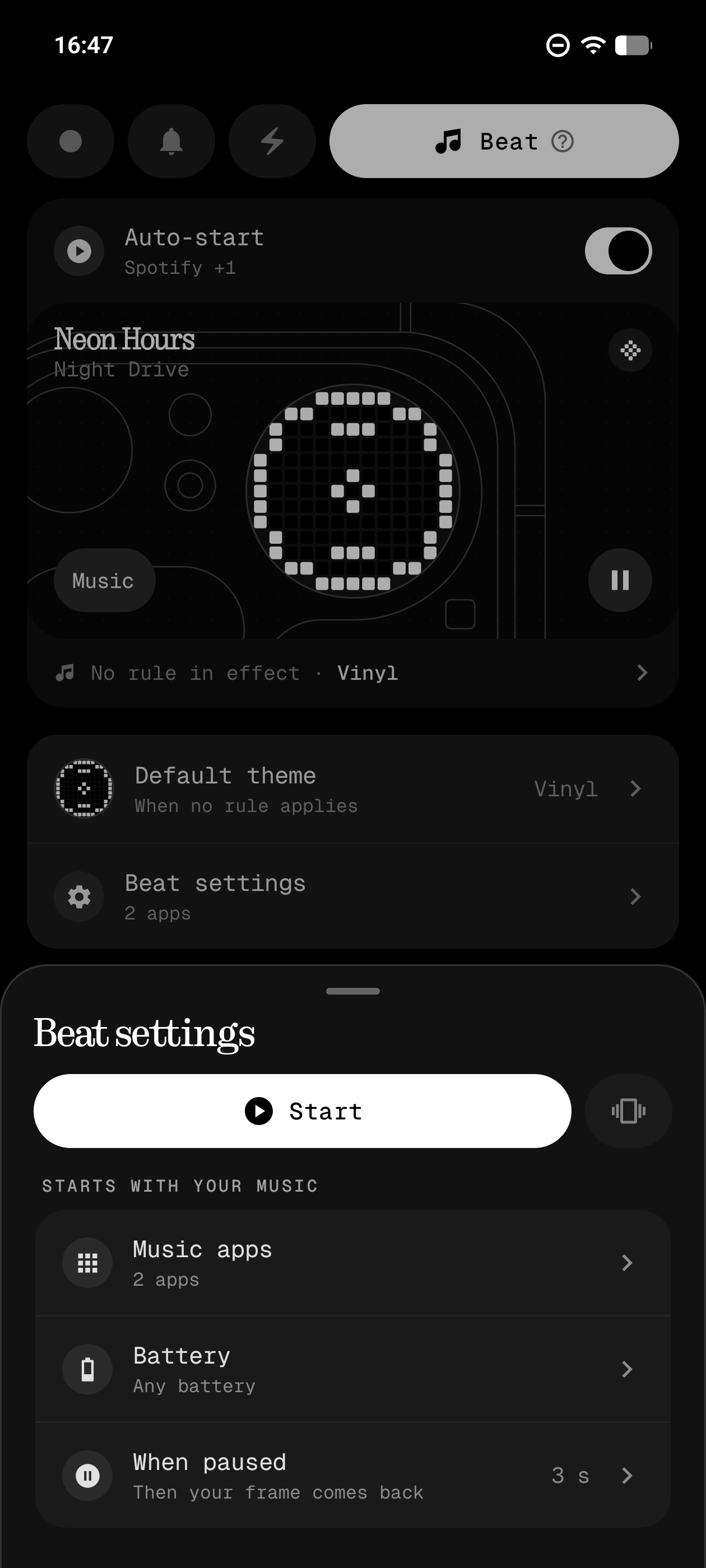
Pick the apps Beat follows, the battery it needs to start, and how long it stays through a pause.
While it plays
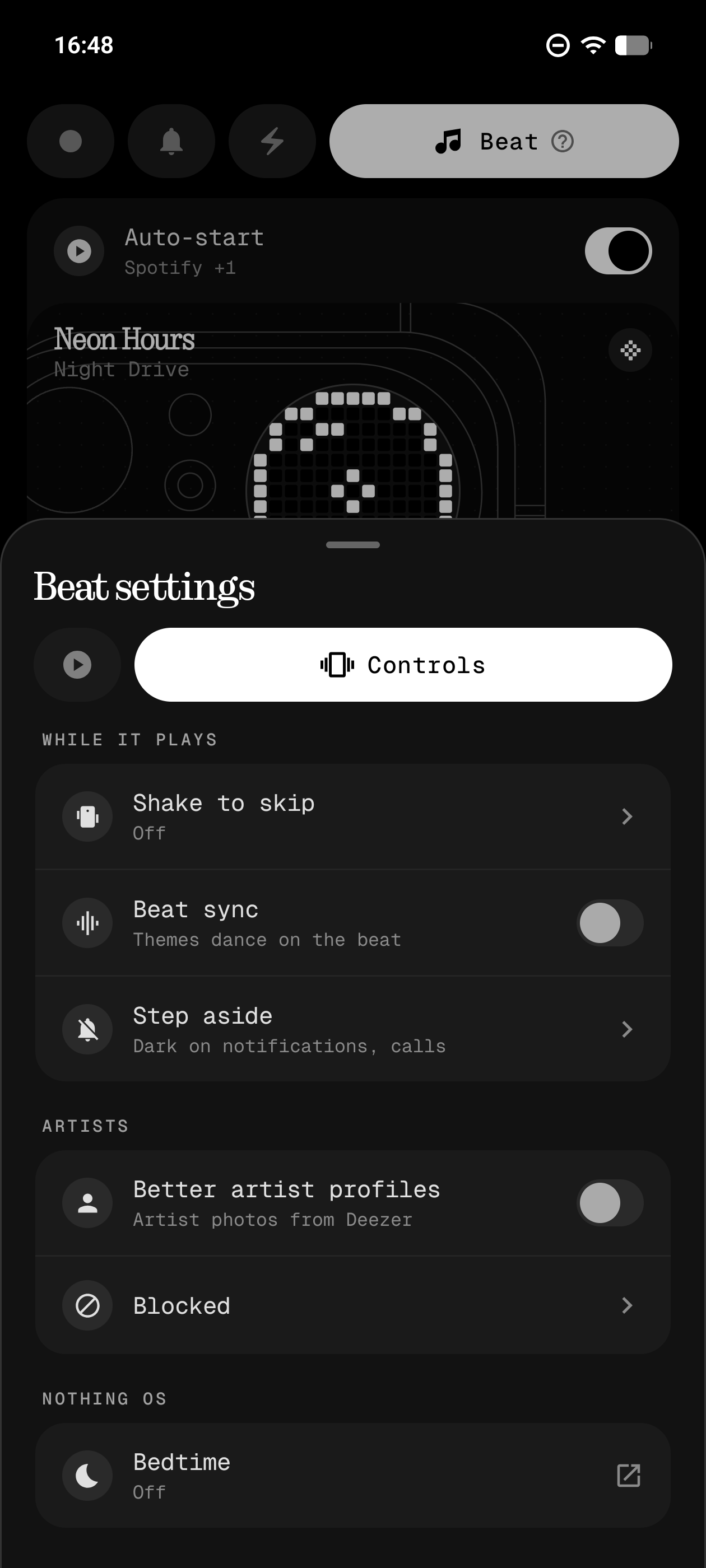
A shake skips the song. Beat sync makes themes dance on the beat, with the microphone. Step aside leaves the Matrix dark for a call or a notification.
A theme for each song
Rules pick the theme by app, artist or album. The most specific one wins, and the + in the corner adds another.
What Beat is
Beat is a music visualizer for the Glyph Matrix on the Phone (3) and Phone (4a) Pro. While a music app plays, the Matrix on the back of your phone shows a theme: a spinning record, a dancing duck, the sound as bars or the album cover. Beat used to be a separate app, Glyph Beat. Since version 2.4 it is part of Glyph Museum.
Open the Matrix tab and go to Beat. Beat follows the music app that is playing, so it needs notification access to see the song. Until you allow it, a Notification access row sits at the top of the page.
- Auto-start: on, Beat starts by itself when one of your music apps plays. Off, only the Beat toy plays it, on the Glyph Button or the always-on display.
- The plate: the theme on the Matrix, the song, its artist and its app, with play and pause.
- Under the plate: the rule in effect, or "No rule in effect · Vinyl".
A custom trigger can also start Beat with a theme, or stop it.
Themes
Default theme is what plays when no rule picks another. It starts as Vinyl. Tap it to see every theme. Four are built in, and the gear on the one you pick opens its settings:
- Vinyl: a record that spins at 33, 45 or 78 rpm. On the beat makes the label pulse, and Tonearm adds the arm.
- Dancing Duck: a duck that dances Groove, Nod, Bounce or Spin, with Spin on the Phone (3) only. It also has Speed and On the beat.
- Waveform: the sound itself as bars, in Mirror or Bars style. It listens through the microphone.
- Cover art: the album cover, still or spinning slow, normal or fast.
Each theme has its own look for a pause and for when nothing plays. A paused record spins down, and the duck falls asleep.
Your own themes
Under Yours, New theme turns your designs into a Beat theme. That takes Supporter. Pick a design for each moment: Playing, Paused and Nothing playing. Only Playing is required. Speed and On the beat set how it moves. A design you change later shows in the theme.
Effects, at the bottom of the sheet, apply to the default theme.
When it starts and stops
Beat settings has two pages, Start and Controls. Start sets when Beat comes on and when it lets go of the Matrix.
- Music apps: the apps Beat follows. By default, the known music apps on your phone. You can add any other app.
- Battery: Any battery by default. Turn on Stop on low battery and pick a level from 5 to 100%. Below it, Auto-start waits.
- When paused: how long Beat stays after you pause. Off, 3 s, 10 s, 30 s or 1 min, with 3 s by default. Then your frame comes back.
Skipping a song is not a pause. Between tracks Beat waits 3 seconds, so a skip never drops the Matrix. The Beat toy keeps the paused look with no time limit.
While it plays
The Controls page sets what Beat does during a song.
- Shake to skip: a shake skips the track. Set its strength, whether it works locked or unlocked, and vibration. It is off by default and separate from the Shake trigger. Both can be on.
- Beat sync: themes dance on the beat. It listens through the microphone and is off by default.
- Step aside: the Matrix goes dark for a call or a notification, then Beat comes back. Pick 3, 5, 8 or 15 seconds, and calls only or both. It is on by default.
Waveform and Beat sync ask for the microphone when you first use them. Nothing is recorded or sent anywhere.
Artists
- Better artist profiles: artist photos from Deezer for your rules. It is off by default, and turning it off deletes the photos.
- Blocked: artists and albums you keep out of the rule picker. Beat still plays their music.
Bedtime
The last row shows Nothing OS Bedtime, the hours when the Matrix stays dark, and opens Nothing OS to change it.
Alerts and triggers come before Beat. When one plays, it takes the Matrix, and Beat comes back after.
A theme for each song
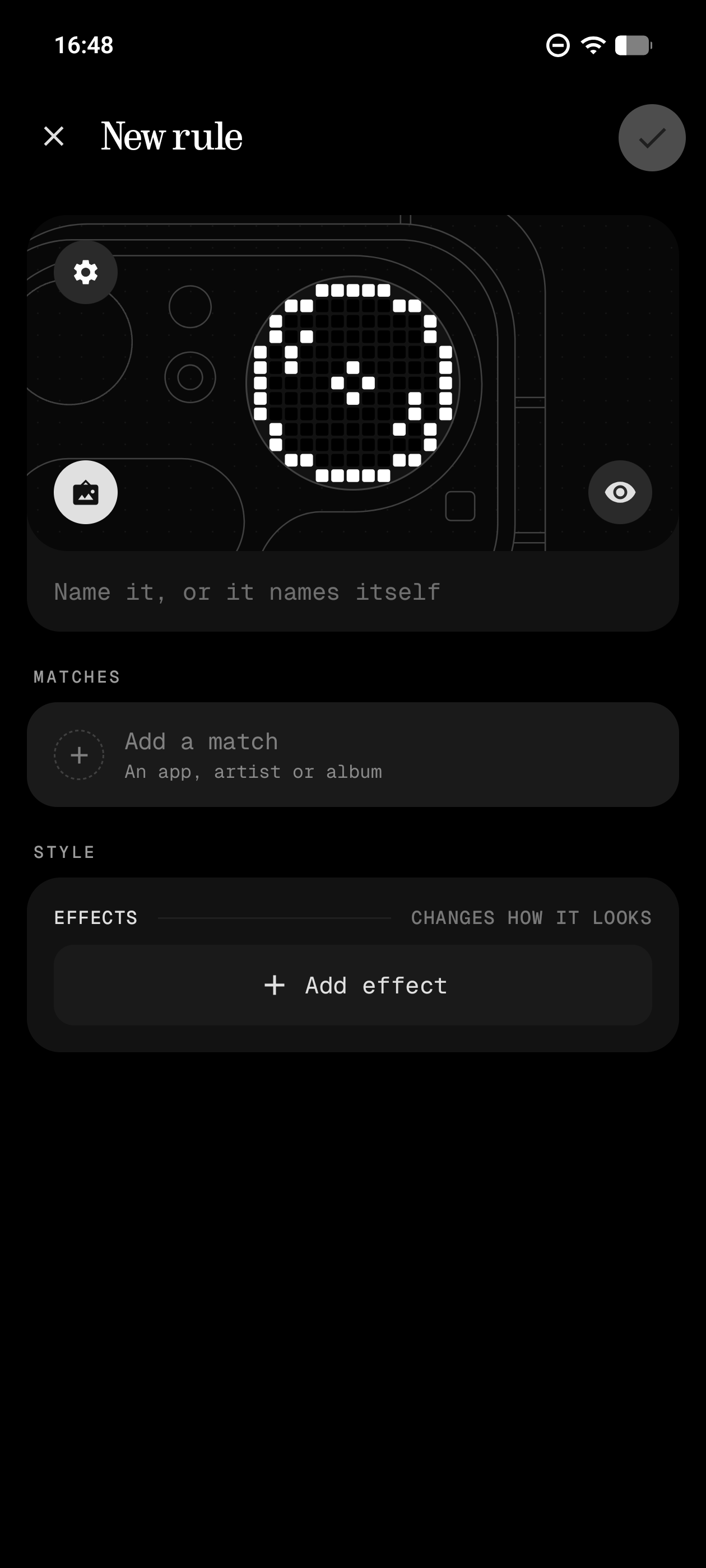
Rules pick the theme by app, artist or album. With no rules yet, the page offers One app, An artist and An album, or the same for the song playing. The + adds another rule.
- The plate: the rule's theme, a button to change it, a gear for its settings and a live preview on the Matrix.
- A name: leave it blank and the rule names itself, like "Daft Punk".
- Matches: Add a match picks an app, artist or album. A rule can hold several of each, and you can type a name.
- Style: effects on top of the theme, which keeps its own timing.
How rules decide:
- Within one kind any pick matches. With more than one kind, all must match at once.
- The most specific rule wins: album, then artist, then app. On a tie, the higher one wins.
- Up to 30 rules, and a switch on each turns it off.
- If a rule's theme is deleted, it plays Vinyl.
More from the app
A tour of the museum
Where everything is: Explore, your frames, alerts and the editor.
Frames
Pin designs to frames, style them, then show them on the Matrix: always on, or among the toys of the Glyph button.
Alerts
Make the Matrix play a design when a notification you care about arrives.
Triggers
When you unlock, charge, shake or take a photo, the Matrix plays the design you pick.