Get your own glyph art lit up on the back of your phone. Pick your phone below and follow its exact steps. The whole thing takes a few minutes.
Before you start
- A Nothing Phone 3 or Nothing Phone 4a Pro.
- Glyph Interface enabled in your phone settings.
- Glyph Museum installed from Google Play.
Pick your phone
-
Open Glyph Interface
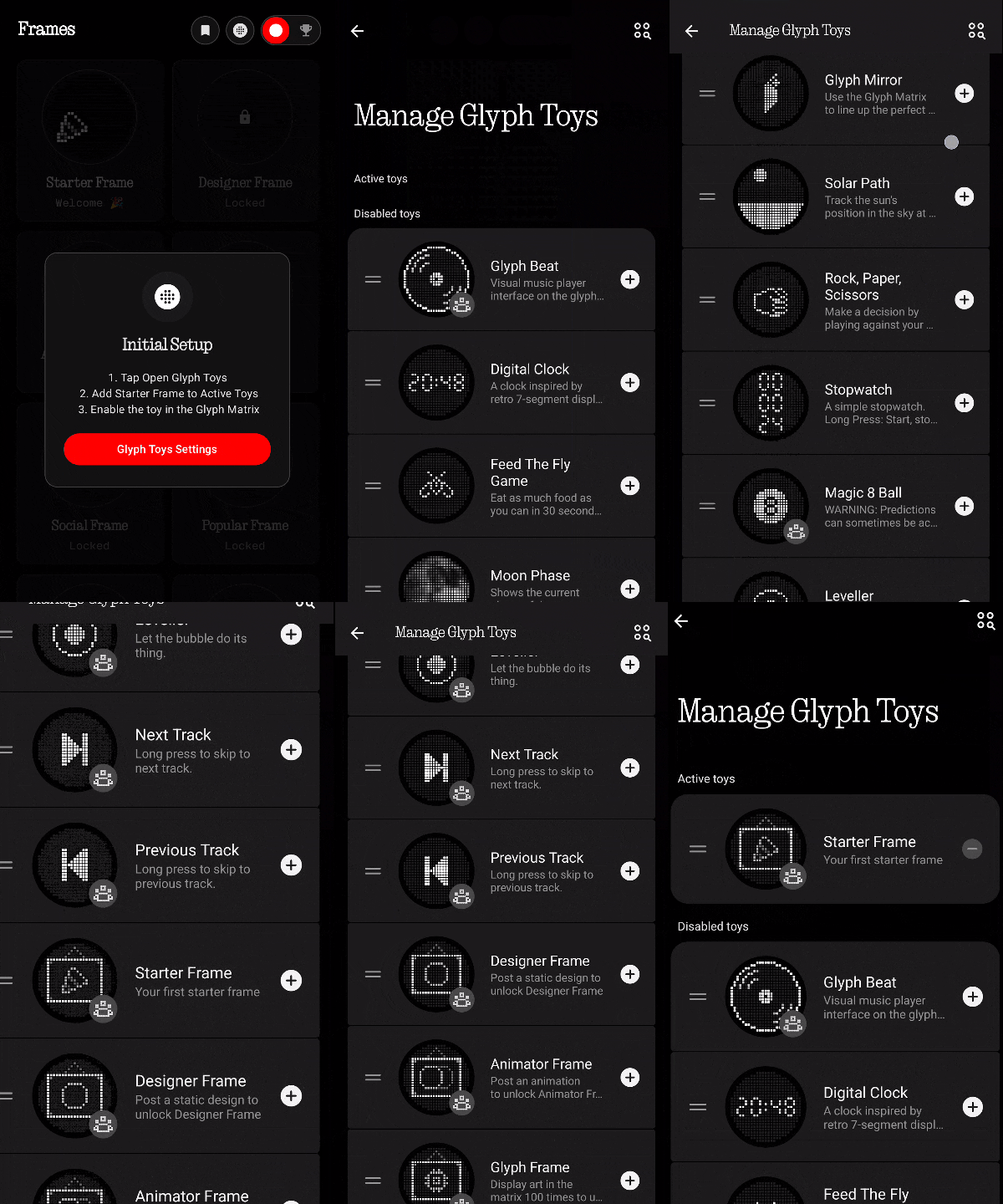
In Glyph Museum, open the Frames screen and tap the dotted-matrix circle on the right of the navbar. It jumps you to Settings › Glyph Interface.

-
Tap Manage Glyph Toys
On the Glyph Interface page, tap Manage Glyph Toys. This opens your phone's own system settings.
-
Add your frames
Find Starter Frame under the disabled toys and add it. Phone 3 can hold several frames in the toy carousel, so add as many as you like.
-
Activate it
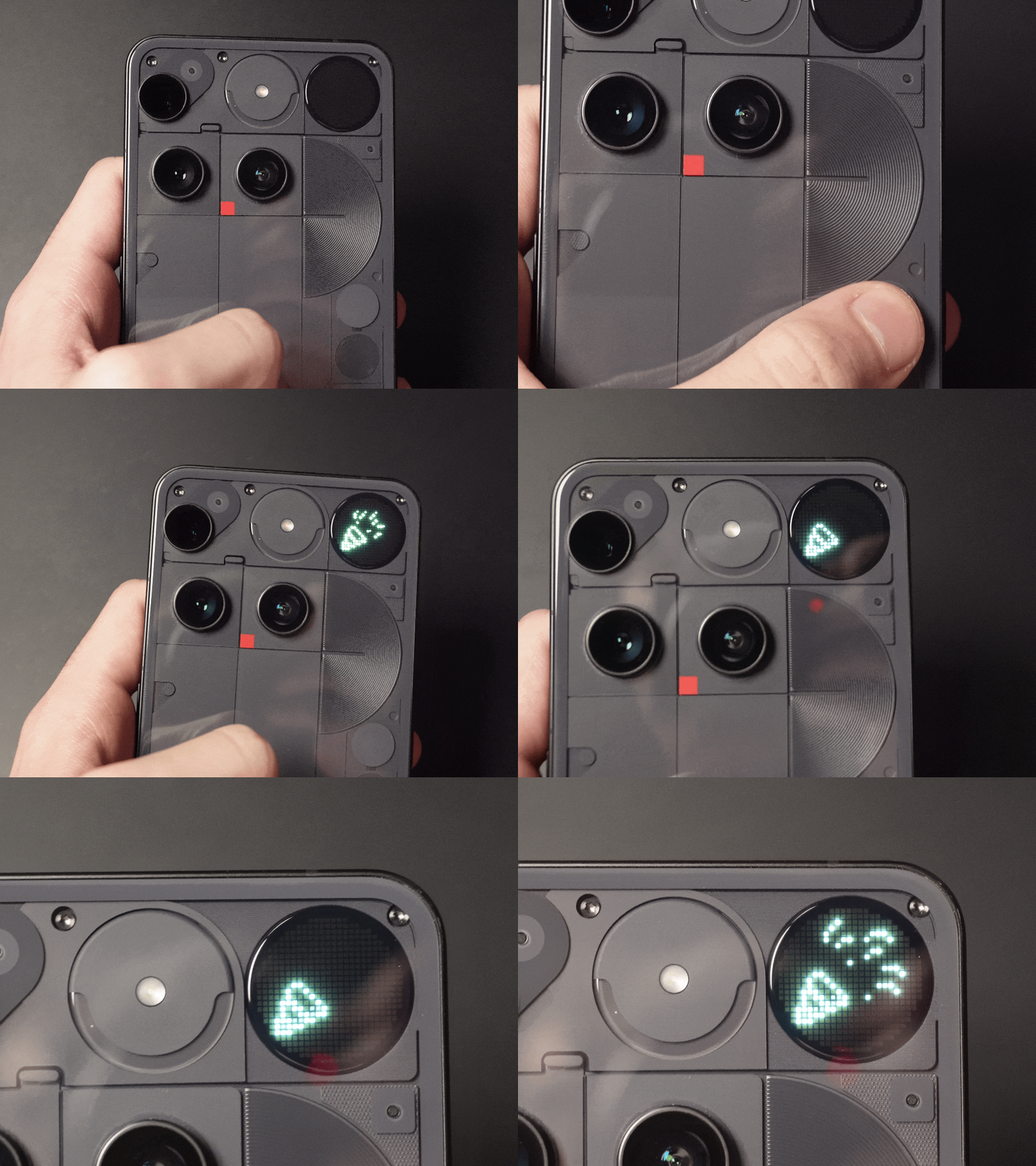
Press the Glyph button to cycle through your Glyph Toys until your frame shows on the matrix. A confetti animation confirms you're set.
-
Open Glyph Interface
In Glyph Museum, open the Frames screen and tap the dotted-matrix circle on the right of the navbar. It jumps you to Settings › Glyph Interface.
-
Tap Manage Glyph Toys
On the Glyph Interface page, tap Manage Glyph Toys. This opens your phone's own system settings.
-
Pick one frame
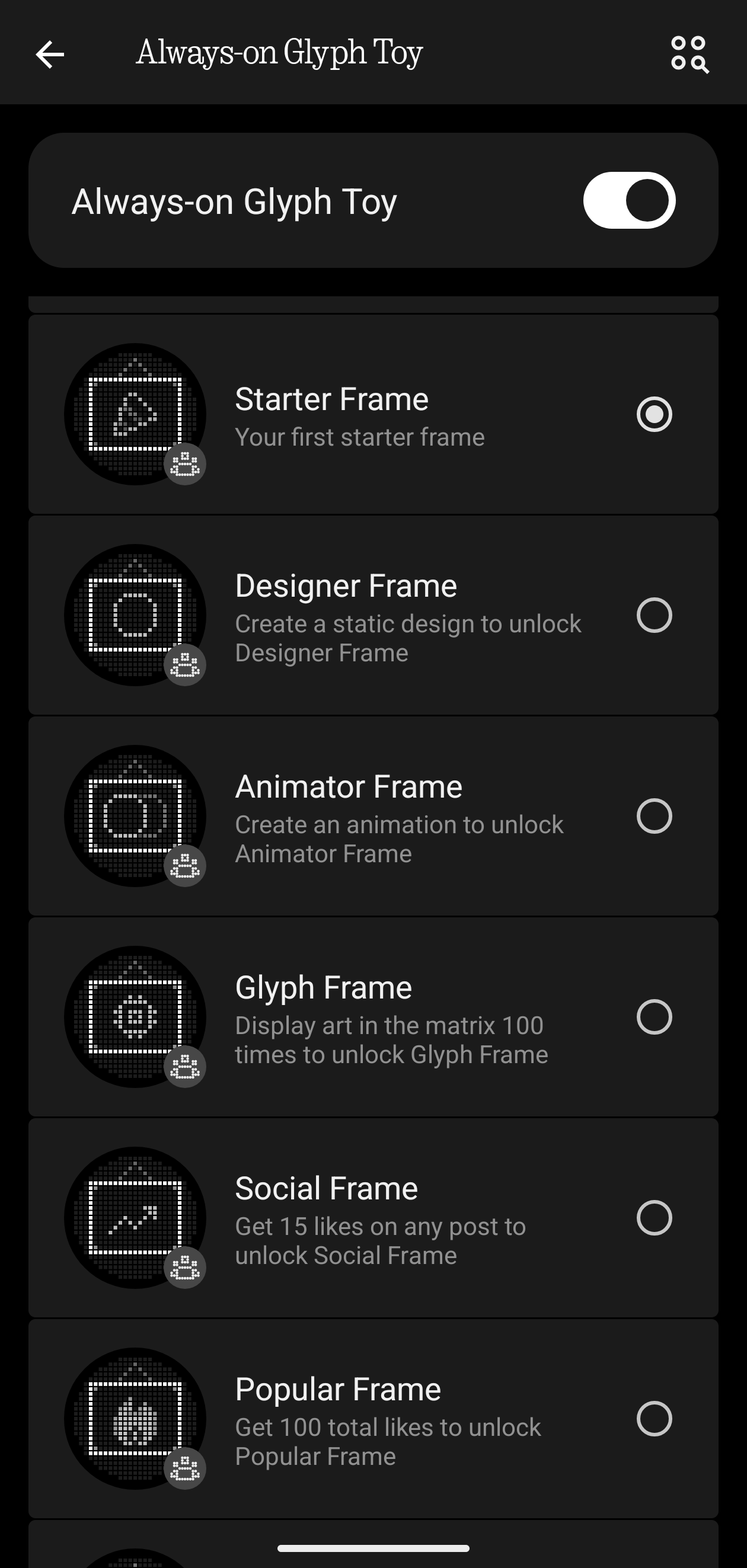
You'll land on the Always-on Glyph Toy screen. The 4a Pro shows a single always-on toy, so select one frame with its radio button.
-
Activate it
Close the screen and lay your phone face-down on a flat surface. Your frame turns on and stays always-on on the matrix.
You're set
Your frame is live on the matrix. Now browse the community gallery for art you like, download creations from other artists, or open the editor and design your own.